People and the tools they use
- Disability (in this talk)
- Any condition that affects how a person sees, hears, moves, reads, or processes information. It can be permanent, temporary (a broken wrist), or situational (a noisy room, a phone screen in sunlight). Many students never disclose one.
- Assistive technology (AT)
- Hardware or software that a person with a disability uses to do what others do without it. It sits between the person and the content: it changes how the content is presented (spoken, enlarged, in braille) or how the person controls the computer (voice, keyboard, a switch). AT can only work with what the document gives it, so a document has to be built so AT can read it.
- Screen reader
- Assistive technology, mostly used by people who are blind or have low vision, that turns what is on the screen into speech or braille. It is called assistive technology because it replaces seeing the screen: instead of scanning a page with their eyes, the user listens and jumps by headings, links, lists, tables, and equations. It can only announce structure the document actually contains. Examples: NVDA, JAWS, VoiceOver.
- NVDA
- A free, open-source screen reader for Windows from NV Access, widely used and a good one for testing your own documents. Since version 2026.1 it reads math with MathCAT built in. Its Speech Viewer shows on screen what it is saying.
- JAWS
- A commercial screen reader for Windows, common in workplaces and universities.
- VoiceOver
- The screen reader built into Apple devices (Mac, iPhone, iPad).
- Refreshable braille display
- A device with small pins that rise and fall to form braille characters, showing a line of text at a time. Screen readers send text to it; for math, MathML can be shown in Nemeth or UEB braille.
- Screen magnifier
- Software that enlarges part of the screen for people with low vision. Text that reflows and stays sharp works far better than text inside a picture.
- Text-to-speech (read aloud)
- Software that reads text aloud, used by many students with dyslexia or attention difficulties who can see the page. It also depends on correct reading order.
- Speech recognition (voice control)
- Software that lets a person control the computer and write by speaking, often used by people with motor disabilities.
- Keyboard-only navigation
- Using a computer without a mouse, with Tab, arrows, and Enter. Everything that can be clicked must also be reachable and usable with the keyboard.
Law and policy
- ADA Title II
- The part of the Americans with Disabilities Act that covers state and local governments, including public universities. It says no one can be excluded from their programs and services because of a disability.
- DOJ rule (April 2024)
- The Department of Justice regulation that sets the technical standard for Title II web content and mobile apps: WCAG 2.1 Level AA. It covers what we offer students online: web pages, documents, and videos. The compliance date was extended to April 26, 2027; the requirements did not change.
- Accommodation
- An individual adjustment made after a student requests it, such as extra time or a converted file. It is reactive and arrives late.
- Accessibility
- Building content so it works for people with disabilities from the start, without a special request. It is proactive and benefits everyone.
- Equally effective
- The legal idea behind access: a student with a disability gets the same information, through an equally effective experience, with comparable ease. Not identical, but not worse.
Standards
- WCAG (Web Content Accessibility Guidelines)
- The international standard, from the W3C, for making digital content accessible. Version 2.1 has 4 principles, 13 guidelines, and 78 testable success criteria. Despite the name, it applies to documents and video too. Read WCAG 2.1
- POUR
- The four WCAG principles. Content must be Perceivable (can be seen, heard, or felt), Operable (can be used, for example by keyboard), Understandable (clear and predictable), and Robust (works with current and future assistive technology).
- Success criterion
- One testable requirement in WCAG, for example "text contrast of at least 4.5:1." Each has a level.
- Levels A, AA, AAA
- WCAG conformance levels. A is the minimum, AA is the level the law requires (it includes all of A), and AAA is the highest and is not expected for whole sites.
- Contrast ratio
- How different the text color is from its background, from 1:1 (none) to 21:1 (black on white). WCAG AA asks for at least 4.5:1 for normal text and 3:1 for large text.
- PDF 1.7 and PDF 2.0
- Versions of the PDF file format. PDF 1.7 (ISO 32000-1) is what most tools still produce; accessibility was added to it through tags. PDF 2.0 (ISO 32000-2) redesigns that structure, for example so a file can carry real math structure (MathML).
- PDF/UA (Universal Accessibility)
- The ISO standard that says how a PDF must be built so assistive technology can use it. WCAG says what a student must be able to do; PDF/UA says how a PDF makes it possible. The law names WCAG, not PDF/UA, but PDF/UA is the technical route for PDFs.
- PDF/UA-1
- The first version (ISO 14289-1), built on PDF 1.7. Most checkers test against it.
- PDF/UA-2
- The newer version (ISO 14289-2, 2024), built on PDF 2.0, with better support for math and modern structure. Many checkers do not support it yet.
- Well-Tagged PDF (WTPDF)
- A PDF Association specification (2024) for tagging PDF 2.0 files so their content can be reused: converted to HTML, reflowed on small screens, or read by assistive technology.
Document structure
- Tags (tagged PDF)
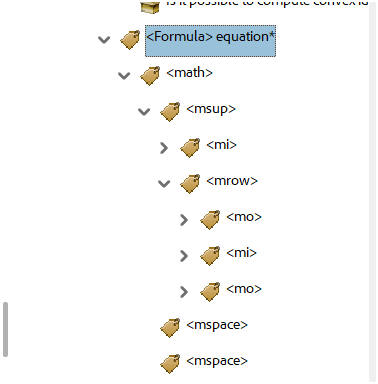
- Hidden labels inside a PDF that say what each piece of content is: a heading, a paragraph, a list, a table, a figure, a formula. Screen readers read the tags, not the look of the page. A PDF without tags is, to a screen reader, an unstructured pile of text or nothing at all.
- Structure tree
- The full set of tags, nested in order like an outline of the document. It is what assistive technology navigates.
- Reading order
- The order in which assistive technology reads the content. It must follow the logical order (title, then text, then figure and caption), not the order things were drawn on the page.
- Headings and heading levels
- Titles marked as headings (level 1, 2, 3...) rather than just made bold and large. Screen reader users jump from heading to heading to skim, so the levels must not skip (a level 3 directly under a level 1 is a missing step).
- Alt text (alternative text)
- A short text replacement for an image, read by screen readers in place of the picture. It should say what the image means in this context, in about 120 to 150 characters at most, not describe every pixel.
- Extended description
- A longer explanation of a complex image (a chart, a diagram, a proof figure), placed in the text, in an appendix, or linked. Used when alt text alone cannot carry the information.
- Decorative image / artifact
- Content that adds no information, such as a divider line, a background, or a page number. It is marked as an artifact (in PDF) or given empty alt text (alt="") so screen readers skip it instead of reading noise.
- Table headers
- Cells marked as row or column headers so a screen reader can say "Week 3, Topic: Limits" while moving through a table instead of reading bare numbers.
- Document title and language
- Metadata that tells assistive technology what the document is called and what language to speak it in. A wrong language makes the screen reader mispronounce everything.
- Link text
- The words that are a link. They should say where the link goes ("WCAG 2.1 on the W3C website"), because screen reader users often list all links out of context; "click here" means nothing there.
- Formula tag
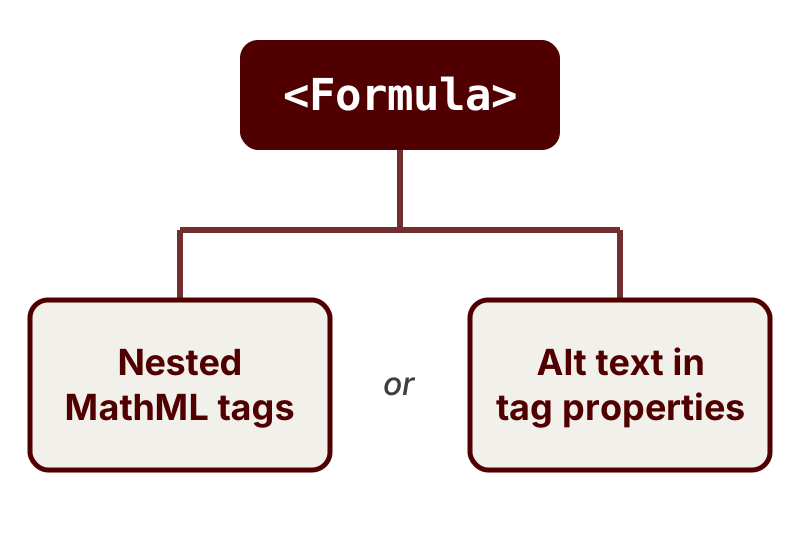
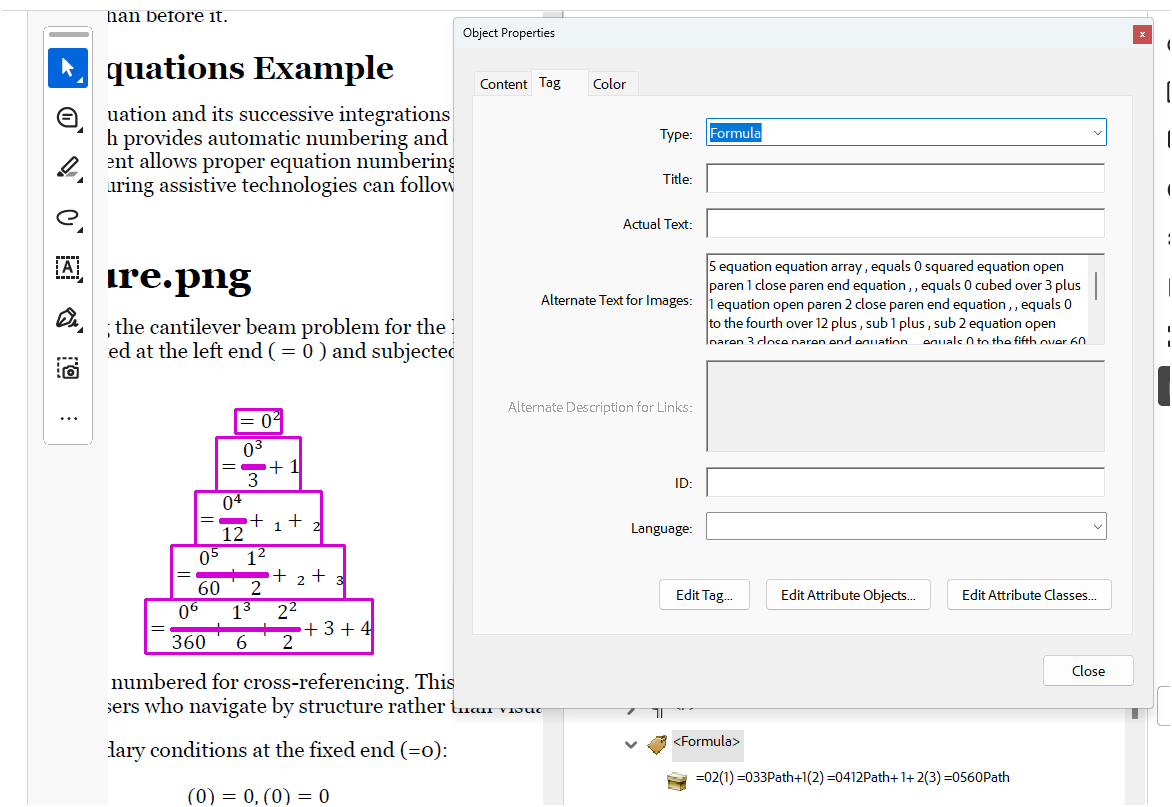
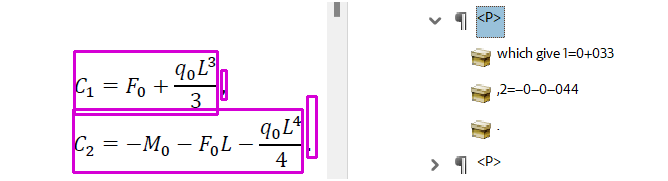
- The tag that marks math in a tagged PDF. To be readable, it must contain MathML (PDF 2.0) or alt text (PDF 1.7). Math tagged as a figure without alt text, or left untagged, can't be read by assistive technology.
Math
- MathML
- A standard way to write math as structure (fractions, exponents, roots, subscripts) rather than as a picture. With MathML a screen reader can read an equation aloud correctly, let the student move through it term by term, and show it in braille.
- MathCAT
- Open-source software that turns MathML into clear speech, braille (Nemeth and UEB), and step-by-step navigation. It is built into NVDA.
- Equation as an image
- Math saved as a picture, with alt text at best. The student hears one flat sentence and cannot explore the parts, which is hard for anything longer than a short formula.
- MathJax
- Software that displays math on web pages from LaTeX or MathML, with built-in accessibility (speech and exploration of expressions). Common in web-based course materials.
LaTeX
- LaTeX Tagging Project
- The LaTeX team's ongoing project to make LaTeX produce tagged, accessible PDF directly. Turned on with
\DocumentMetadata at the top of the file. Project website \DocumentMetadata- The first line of a modern accessible LaTeX file. It sets the PDF version, the PDF/UA standard, and turns on tagging.
- LuaLaTeX
- The LaTeX engine recommended for tagged PDF, because it can attach MathML to equations and handles Unicode fonts.
- Preamble
- The setup section at the top of a LaTeX file, before
\begin{document}. The accessible template is a preamble you reuse; your content goes after it.
Checking
- Accessibility checker
- Software that tests a document against rules a computer can verify, such as "every image has alt text" or "tags exist." It cannot judge meaning: whether the alt text is right, whether the reading order makes sense, or whether an equation reads well. Passing a checker is a starting point, not proof of access.
- Machine-verifiable vs. human judgment
- Some requirements can be tested automatically (is there a title?), and others need a person (is the title accurate?). Checkers cover only the first kind.
- Ally
- An accessibility checker built into the learning management system (Canvas at many schools) that scores course files and offers alternative formats. It does not support PDF/UA-2.
- YuJa Panorama
- Another accessibility checker built into the learning management system. It does not support PDF/UA-2.
- Adobe Acrobat Accessibility Checker
- The checker built into Acrobat Pro, which can also edit tags and reading order. It does not support PDF/UA-2.
- PAC (PDF Accessibility Checker)
- A free Windows tool from axes4 that checks PDFs against PDF/UA and WCAG and can preview the structure as a screen reader would meet it.
- veraPDF
- A free, open-source validator for PDF standards, including PDF/UA-1 and PDF/UA-2. It checks only the machine-verifiable rules.
- Autotagging
- Automatic tagging of a PDF from its visual layout, as in Acrobat's accessibility guided action. It replaces any existing tags, so on a tagged LaTeX PDF it removes the Formula tags and MathML.
Conversion tools
- Mathpix
- A commercial tool that recognizes math in screenshots, images and PDFs and converts it to LaTeX, Word or HTML. Snip handles single equations; document conversion handles whole files; the API handles batches. Proofread every result.
- Pandoc
- A free, open-source command-line converter between document formats, for example from a .tex file to Word or HTML. Complex macros may need cleanup.
Video
- Captions
- Text of everything spoken and of important sounds, synchronized with the video. Needed by deaf and hard of hearing students and used by many others. Automatic captions must be corrected, especially for math.
- Transcript
- All the spoken words (and important sounds) as a text document. Useful for review and search, but not a replacement for captions in a video.
- Audio description
- Narration that describes important visual information the audio alone does not explain, such as an equation written on the board without being read aloud. The easiest way to avoid needing it is to say what you write and show.